Auto-Editing My YouTube Videos With an AI Agent
How I turned a raw two-hour gameplay capture into a cut video, vertical Shorts, captions, and thumbnails by handing the grunt work to an OpenVole agent and a skill called resolve-autocut. I keep the judgment; the agent does the tedium.
Editing a gaming video is mostly janitorial work. You scrub through a long capture hunting for the good bits, cut the dead air where you’re loading a map or reading chat, hack out three vertical Shorts for the algorithm, burn captions, pick a thumbnail frame, and run it all through a loudness check so YouTube doesn’t crush your audio. None of that is creative. It’s the part between having good footage and having a video.
So I taught an agent to do it for me with an OpenVole Skill called resolve-autocut. OpenVole 4.5.0 lets a skill ship runnable scripts alongside its instructions, and the agent runs them sandboxed.
The split: judgment vs. grunt work
The whole design rests on one line from the skill’s own instructions. You do the judgment (thresholds, which moments matter, titles); the bundled scripts do the grunt work (silence detection, cutting, rendering).
That’s the contract. The agent never guesses at what’s funny or which clip is the money shot, I tell it, or it reads the transcript and asks. But detecting 400 silent gaps and trimming them frame-accurately? That’s a script’s job, not an LLM’s. resolve-autocut bundles a dozen small Python tools that lean on ffmpeg and DaVinci Resolve, and the agent orchestrates them.
It installs from VoleHub, OpenVole’s skill registry, and that install fetches every file the skill bundles the SKILL.md playbook plus all scripts, verifying each against a per-file SHA-256 hash, so what lands on disk is exactly what was published. When the agent runs one of the scripts, skill_run_script confines it to the skill’s own directory with only the environment the skill declares (it needs ffmpeg, ffprobe, python3), never my full shell environment. I’ll cover the actual install command in the setup below.
Running Vole Server and preparing video editor Vole agent
OpenVole runs as a server, and every agent is a space; its own config, paws, identity, and data directory, isolated from everything else. I don’t want my video editor sharing a brain or a memory with my email agent, so it gets a dedicated one.
 The
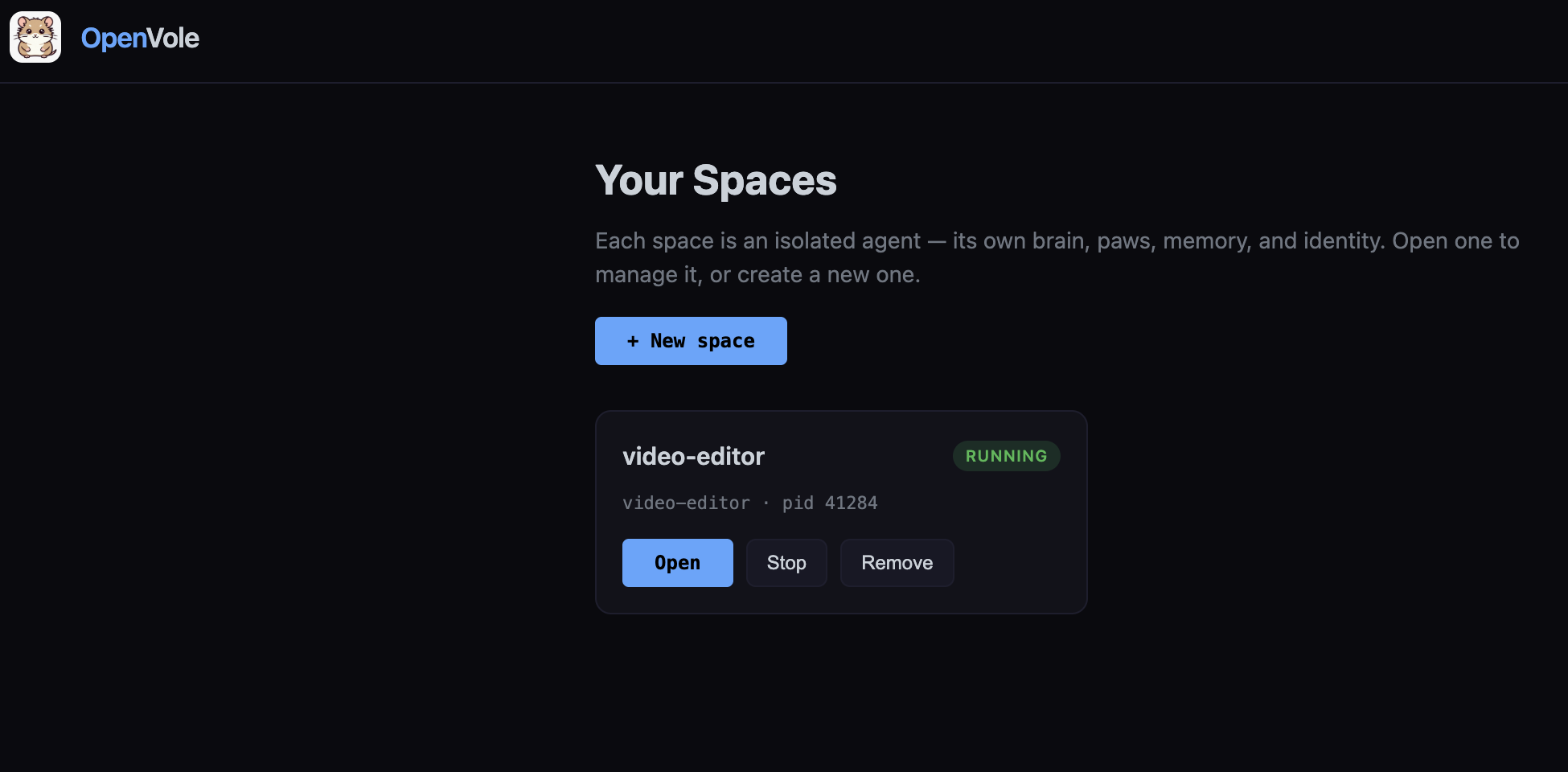
The vole serve dashboard home. Every agent is an isolated space with its own brain, paws, memory, and identity; here the video-editor space is up and running.
Start the control plane and create the space:
vole serve                       # one dashboard for every agent
vole space create video-editor
The scripts shell out to a few tools, so those need to be on the machine first:
ffmpeg -version     # cutting, Shorts, thumbnails, loudness
ffprobe -version    # media inspection
python3 --version   # the skill's scripts
whisper --help      # captions (or point WHISPER_CMD at your binary)
# DaVinci Resolve Studio is optional - only the scripted timeline/render steps need it
I built and tested all of this on macOS with exactly this setup, ffmpeg/ffprobe from Homebrew (brew install ffmpeg), Whisper installed via pip, and DaVinci Resolve. The ffmpeg-driven steps (analyze, Shorts, captions, thumbnails, loudness, QC) and the free-Resolve FCPXML path further down are what I actually ran end to end; only the scripted timeline/render steps need Resolve Studio. The paths in the config below are Mac-style, but nothing about the pipeline is platform-specific, Linux and Windows work the same way with adjusted paths.
Install the skill into the space:
vole skill install resolve-autocut
Now configure it. The two things that matter are where the footage lives and which paws it gets. A minimal vole.config.json for the space:
{
  "brain": "@openvole/paw-brain",
  "heartbeat": { "enabled": true, "intervalMinutes": 180 },
  "security": {
    "sandboxFilesystem": true,
    "allowedPaths": ["/Users/me/footage"]
  },
  "paws": [
    {
      "name": "@openvole/paw-brain",
      "allow": {
        "network": ["*"],
        "childProcess": true,
        "env": ["BRAIN_PROVIDER", "BRAIN_API_KEY", "BRAIN_MODEL"]
      }
    },
    { "name": "@openvole/paw-session" },
    { "name": "@openvole/paw-memory" },
    { "name": "@openvole/paw-compact" }
  ],
  "skills": ["volehub/resolve-autocut"]
}
That allowedPaths entry is what lets the agent reach my captures and write drafts back beside them. The four paws are the essentials, a brain to reason, plus session, memory, and compaction so it remembers what it’s working on across a long edit. Notably there’s no tool paw for the editing itself: skill_run_script is a core tool, so the skill activates the moment it’s installed and runs its scripts directly. Everything above is also editable from the vole serve dashboard, the Config tab is a structured form, and the Paws panel lets you grant or revoke each permission with a toggle.
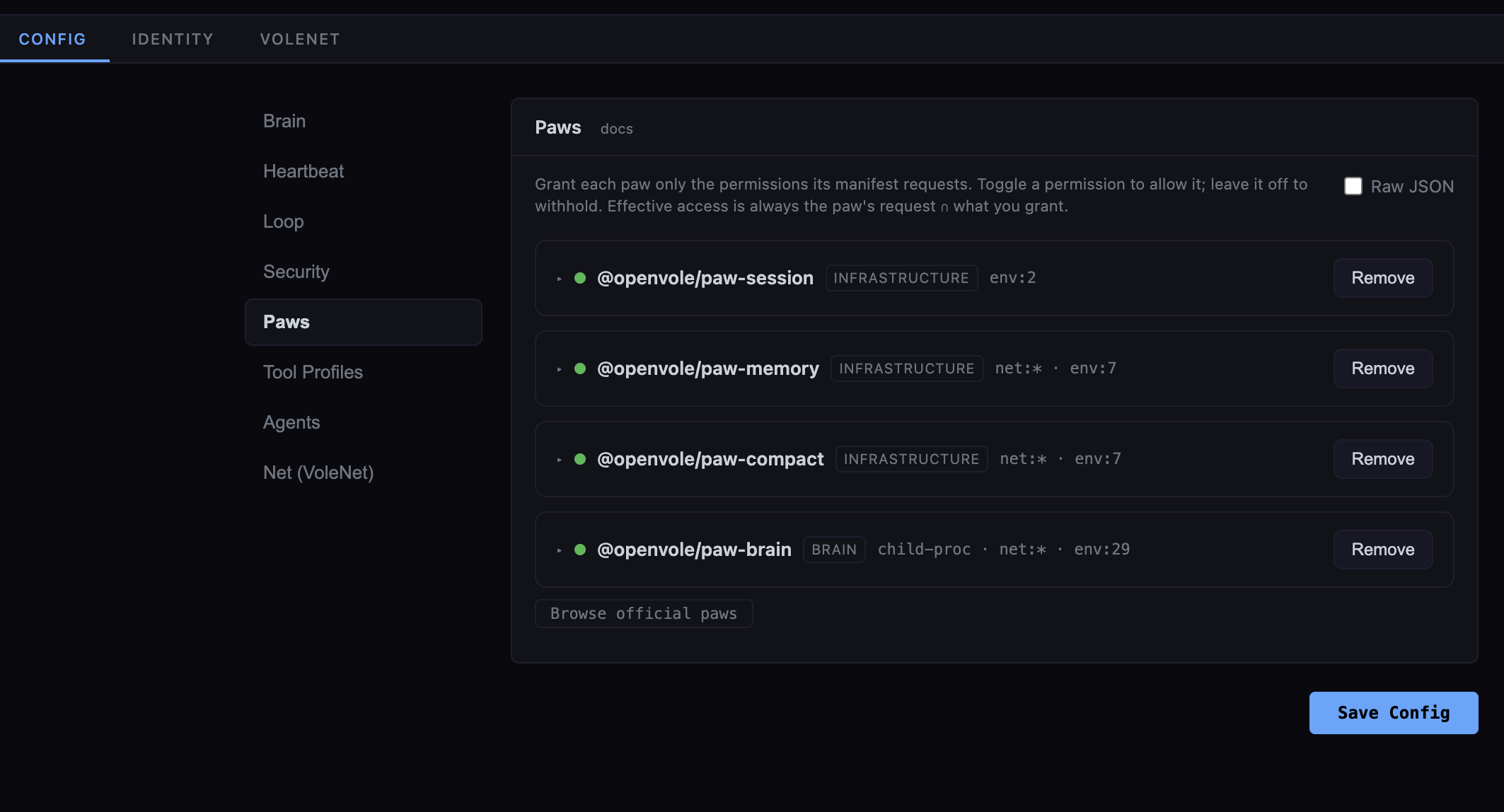 The Config tab’s new visual Paws panel: each paw shows what it is (brain, infrastructure) and the permissions it requests, and you grant or withhold each with a toggle. Effective access is always the paw’s request + what you grant.
Then I give it an identity and this is where a specialized agent really takes shape. Instead of cramming everything into one giant prompt, OpenVole splits a space’s brief across a few small Markdown files in its .openvole/ directory, each answering a different question. The core stitches them together with the skill list, the available tools, and the agent’s memory into the system prompt it hands the brain on every turn:
AGENT.md: what it is and what it does. The agent’s general role and default workflow, the same for every video. It also points the agent at per-project instructions (more on that in a moment).SOUL.md: how it behaves. Temperament and hard rules.USER.md: who it serves. Who I am and how I want drafts delivered.HEARTBEAT.md: what it does on a schedule, without being asked.
(There’s also a BRAIN.md for overriding the base system prompt wholesale, but for a specialized agent the four above are all you touch.)
The AGENT.md is the agent’s general operating manual, its role and defaults, identical across every video. For the editor, mine reads:
# Video Editor

You edit raw gameplay captures into YouTube-ready videos with the
`resolve-autocut` skill. Footage lives in /Users/me/footage.

Default workflow for a new capture:
1. Analyze for silence + loud moments, then STOP and let me review the cuts.
2. Once I approve: build the timeline, transcribe captions, cut 3 Shorts,
   propose 5 thumbnails, normalize to -14 LUFS, run QC.
3. Never publish. Hand me drafts and a short summary of what you changed.

For a specific video, first read `project.md` in that video's folder for its
creative direction; treat the steps above as the defaults when there isn't one.

Ask before guessing at silence thresholds or which moments matter.
Notice what that file is really doing: it encodes the human-in-the-loop points as instructions. “STOP and let me review the cuts”, “never publish”, those aren’t enforced by the framework, they’re the agent’s standing orders. The judgment-vs-grunt-work split I described earlier lives here, in plain English.
There’s a deliberate split in that last line worth calling out, because it’s the practice I’d recommend. AGENT.md is general and it belongs to the agent’s OpenVole setup and stays the same whether I’m cutting a hardcore Minecraft series or a racing montage. But the creative direction for a given video changes per project, and that doesn’t belong in the vole identity at all. So I keep a plain project.md in each project’s own folder which is a custom brief, completely outside OpenVole’s config and AGENT.md just tells the agent to go read it:
# project.md - Hardcore Minecraft series
- Cold open on the first death or near-death, no talking intro.
- Keep my "let's get into it" line only if it lands in the first 30s.
- Shorts: favor clutch and fail moments over exposition.
- Thumbnails: my shocked face + a red arrow; never a spoiler frame.
- Chapter titles: playful, lowercase.
That separation is the point. AGENT.md says how to be a video editor for me; project.md says what this particular series is about. The same editor agent then produces on-brand cuts for a hardcore series and a completely different racing channel, I just drop a different project.md beside each project’s footage. The agent stays general and reusable; the project brief travels with the video, lives wherever I keep the footage, and is mine to version however I like, with no OpenVole config involved.
A short SOUL.md keeps it from getting ahead of itself - this is where “don’t touch my originals” goes:
# Temperament
Careful and literal. This is my footage and my channel, never publish,
never overwrite an original file, never delete a draft without asking.
When a threshold or a creative call is ambiguous, stop and ask instead of
guessing. Always report what you changed, with before/after durations.
And because I drop new captures into the same folder, a HEARTBEAT.md turns the editor from reactive to proactive with heartbeat enabled in the config (above), the agent wakes on its interval, reads this file, and acts on its own:
# Recurring jobs
- Every few hours, scan /Users/me/footage for a capture with no matching
  draft yet. If you find one, run analyze and send me the loud-moment
  summary and the proposed cuts, then wait for my go-ahead before rendering.
I set all of these two interchangeable ways: edit the files directly under the space’s .openvole/ folder, or use the Identity tab in the vole serve dashboard, which reads and writes the very same files. The space loads them when its engine starts, so after I change a brief I restart the space, one click in the dashboard, and the new instructions are live. (Config changes like adding a paw also need that restart; it’s the same button.) Because each file is small and single-purpose, I can hand the same SOUL.md to a second editor for another channel while swapping in a different USER.md and AGENT.md.
Start it, and hand it a job in chat:
vole space start video-editor
“New capture at
/Users/me/footage/raid-night.mp4, analyze it and show me the cuts.”
That’s the whole setup: a dedicated agent, pointed at a folder, that knows it’s a video editor. From here, everything it does is the skill’s pipeline and it’s worth seeing what that actually runs under the hood.
The core pipeline: analyze → review → render
Every job starts the same way. Point the analyzer at the raw file:
python3 scripts/analyze.py raw-gameplay.mp4 --out cutlist.json
This does two things at once. It walks the audio and marks every silent stretch, the stuff to cut, producing a keep-list. And it finds the loud moments: the spikes where I laughed, yelled, or something exploded. Those loud timestamps become the highlight markers, and later they seed the Shorts and thumbnails.
The thresholds matter, and they’re per-game. A chatty commentary video wants --db -35 and a generous --pad 0.15 so cuts don’t clip the start of a word. A loud, effects-heavy game needs a lower bar, maybe --db -30, or the whole track reads as “loud” and nothing gets cut. This is the first place the agent stops and checks with me instead of charging ahead, bad thresholds eat punchlines, and there’s no undoing that after the render.
Then it builds the timeline in Resolve from the keep-list, dropping highlight markers as it goes:
python3 scripts/build_timeline.py --cutlist cutlist.json --timeline "Auto Cut"
On the first pass for a new game, the skill deliberately stops here and asks me to eyeball the cuts. If a threshold ate a beat, we re-analyze with a tweak. Only once I approve does it render:
python3 scripts/render.py --outdir drafts --name MyVideo --preset "YouTube 1080p"
Cut, reviewed, rendered. That’s the spine. Everything else is a payoff you bolt on top.
The payoffs
Captions. A Whisper pass transcribes the audio to an .srt (and a .json I reuse later):
python3 scripts/transcribe.py MyVideo.mp4 --outdir captions --model base
The transcript does double duty; it’s captions and it’s how the agent finds the best Shorts. “no way”, “let’s go”, a burst of laughter: those phrases in the transcript, lined up against the loud moments from analyze, are how you pick a clip that actually pops instead of a random 30 seconds.
Shorts / Reels. This is the one YouTubers care about most, and it’s where I spent the most care. It cuts vertical 1080×1920 clips centered on the loudest moments:
python3 scripts/shorts.py MyVideo.mp4 --cutlist cutlist.json --count 3
If you recorded a facecam alongside the gameplay, you can composite it into a corner of each Short, cut to the same instant:
python3 scripts/shorts.py MyVideo.mp4 --at 286 --pre 0 --post 45 \
  --overlay cam.mp4 --overlay-scale 0.30 --overlay-corner bottom-left
Both sources are assumed to start aligned at zero, so the same window cuts each in lockstep. (A subtlety I had to fix the hard way: a 30 fps facecam and 60 fps gameplay don’t start on the same frame after seeking, so the cam popped in a few frames late, zeroing each stream’s timestamps fixed it.) And a nice touch; the Short’s audio comes from whichever track carries your commentary, so you point it at the gameplay file and the facecam can stay silent.
Thumbnails. It pulls candidate frames from the highlight moments so you’re choosing from your best expressions, not scrubbing blind:
python3 scripts/thumbnails.py MyVideo.mp4 --cutlist cutlist.json --count 5
Titles, description, chapters, tags. These the agent writes itself, from the transcript, chapters are just the timestamps where the topic or scene changes. Loudness gets normalized to YouTube’s -14 LUFS target if the source is quiet or uneven. And a QC pass flags black frames, freezes, and dead audio on the draft before it ever tells me it’s ready.
No DaVinci Resolve Studio? There’s still a path The timeline-building and rendering steps need Resolve Studio, because only the paid version can be scripted. But the free version imports timelines, so the skill can build the whole cut, including a synced facecam track, as an FCPXML you import by hand:
python3 scripts/export_fcpxml.py --cutlist cutlist.json \
  --overlay cam.mp4 --overlay-scale 0.25
Then in Resolve: File → Import → Timeline, and the cuts and both tracks come in ready to render. You may want to adjust a facecam video position or add more content to the final cut.
It won’t tell you if your video is good. It won’t write your hook or find the joke. It cuts silence, so if your pacing lives in the pauses, tune --db and --pad or you’ll lose it. And it never auto-publishes, the skill produces drafts, reports what it did (cuts made, duration before and after, Shorts, QC issues), and hands it back to me to approve the final render and upload. That’s on purpose. The agent is a very fast, very literal editor’s assistant, not a creative director.
If you record gameplay and dread the edit, that’s the pitch. Install OpenVole, vole skill install resolve-autocut, point it at your capture, and go make the next one while the agent cleans up this one.
Comments & reactions